IPTV Bell Fibe guide: the Giga Hub, the pods and the settings that matter
Bell Fibe is the easiest big-ISP connection in Canada to run IPTV on, because the line is fibre, the upload matches the download, and nothing in the neighbourhood shares it at 8 pm. When an IPTV Bell Fibe setup buffers, the cause is inside the house, almost always the distance between the Giga Hub and the TV. For plans that run on Fibe, see the IPTV Canada home page.
Bell Fibe in Ontario, Québec and Atlantic Canada, Bell Aliant in the Atlantic provinces, Bell MTS in Manitoba, and the Giga Hub, Home Hub 4000 and Home Hub 3000.
The short versionEvery tier is enough. Split the hub’s bands, wire the TV or put a pod in that room, and only use Advanced DMZ if you own a router.
RelatedFix buffering · Rogers Xfinity (formerly Ignite) · Telus · IPTV in Canada · All devices
Which Fibe tier is enough for IPTV Bell Fibe use, and why the answer is all of them
Bell sells Fibe Internet in three common fibre tiers, Fibe 500, Fibe 1.5 Gig and Fibe 3 Gig, with the same names on Bell Aliant in the Atlantic provinces and on Bell MTS fibre in Winnipeg and the larger Manitoba towns. A Full HD stream needs about 15 Mbps per screen and 4K about 25 Mbps per screen, so a Pro plan running five 4K screens needs roughly 125 Mbps. Fibe 500 carries that four times over, and the IPTV question is never the tier.
Two things make fibre different from cable. The line is symmetrical, so an upload does not squeeze the download the way it does on cable. And the fibre from your house is not shared at a neighbourhood node in the same way, so a Fibe 500 line tests close to 500 at 8 pm on a Saturday. On an IPTV connection, an evening slowdown is a Wi-Fi symptom, not a line symptom.
The exception is copper. Outside the fibre footprint, mostly rural Ontario and Québec and parts of Manitoba, Bell still sells Fibe on DSL at 25 or 50 Mbps. An IPTV setup on those lines is fine for one or two Full HD screens and marginal for 4K, and the speed to check is the one at 7 pm on the TV, not the one on the plan.
| Bell tier | Enough for | Note for IPTV use |
|---|---|---|
| Fibe 500 | Five 4K screens, four times over | The sensible tier; the Giga Hub’s Wi-Fi is the limit, not the line |
| Fibe 1.5 Gig | Everything | Only a wired device on the 10 Gbps port sees the difference |
| Fibe 3 Gig | Everything | No streaming benefit over 500; buy it for other reasons |
| Fibe 25 or 50 on copper | One or two Full HD screens | Test at 7 pm; wire the TV; avoid 4K feeds if it stutters |
Bell’s own speed range, from copper to 8 Gbps
Bell sells two kinds of line, and the speed you get depends mostly on which one reaches your home:
- Fibre to the node (FTTN). Fibre runs to a cabinet in your neighbourhood and copper runs the rest of the way. Bell’s FTTN plans include Fibe 50, at about 50 Mbps.
- Fibre to the home (FTTH, which Bell calls “pure fibre”). Plans run from Fibe 500 (about 500 Mbps) through Gigabit Fibe 1.5 and 3.0, up to Gigabit Fibe 8.0 at 8 Gbps.
So the range is roughly 50 Mbps on the slowest copper-to-the-node plans to 8 Gbps on the fastest fibre.
Any of these tiers is plenty for one HD or 4K stream. Speed problems at home rarely come from the plan itself. They usually come from Wi-Fi between the modem and the TV, or from many devices using the line at once. Bell’s own figure for an app-only Fibe TV customer is a plan of at least 15 Mbps, with 25 Mbps recommended. That’s a useful reference for a single TV.
To see what you actually get, run Bell’s test at bell.ca/speedtest, once next to the modem and once beside the TV.

Setting up the Giga Hub for Bell Fibe streaming, setting by setting
The Giga Hub is Bell’s current gateway, a Wi-Fi 6 modem and router in one, managed from the Bell Wi-Fi app or the admin page at 192.168.2.1. Older installs have a Home Hub 4000 (also Wi-Fi 6) or a Home Hub 3000 (Wi-Fi 5), and the same settings exist on each. Do these in order for any IPTV install.
- Split the Wi-Fi bands. The Giga Hub ships with one network name for 2.4 GHz and 5 GHz and lets the hub decide which band a device uses. On the admin page open Wi-Fi, turn off the option that keeps both bands on the same name, and give the 5 GHz band its own name. Join the TV device to that name only. A Fire TV Stick or Chromecast that can see both bands drifts to 2.4 GHz behind a wall and stays there, and 2.4 GHz is where an IPTV stream buffers.
- Wire the TV if the hub is in the same room. The Giga Hub has Ethernet ports on the back, one of them 10 Gbps. A cable from the hub to an Apple TV, a Shield, a Samsung or LG set, or a Fire TV Stick with Amazon’s CA$20 adapter removes Wi-Fi from the equation. If the install is still to come, ask for the hub in the TV room.
- Put a Wi-Fi pod in the TV room, not a repeater. Bell’s pods are mesh points that hand off cleanly; a generic repeater halves the bandwidth and tends to sit on 2.4 GHz. A pod next to the TV, with the TV device joined to it, is the IPTV fix for a two-storey house with the hub in the basement. Where a cable reaches the TV room, plug the pod into it.
- Leave IPv6 and DNS alone. Bell hands out IPv6 on Fibe and the player apps handle it. Turning it off does not help, and a custom DNS server does not change where an IPTV stream comes from. The hub’s default DNS is fine.
- Advanced DMZ only if you own a router. The Giga Hub has no true bridge mode. Advanced DMZ, under Advanced tools and settings → DMZ, passes the public address to one device, which is how you put your own router in charge. Do it if you already have a mesh system you trust; do not do it to fix buffering, because the hub’s Wi-Fi then switches off and the pods stop working.
- Run the IPTV test at 8 pm, wired and then wireless. Play the same channel on a cable and on the 5 GHz name at the busiest hour. On fibre, if the wired test is clean and the wireless one is not, you have found the whole problem; the buffering guide takes it from there.
Giga Hub 2.0, the admin page and Bell’s own Ethernet advice
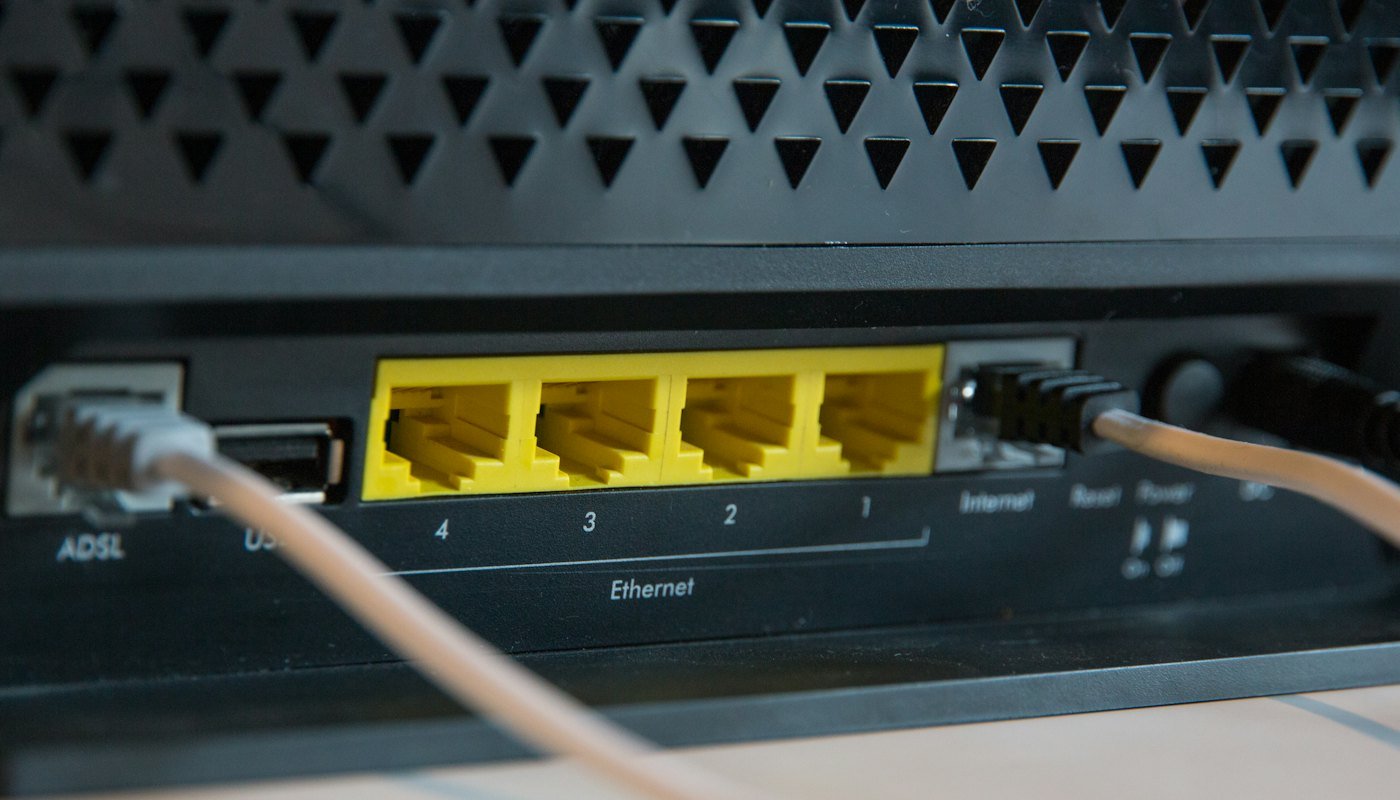
Bell’s support pages cover four modems: the Home Hub 3000 and 4000, the Giga Hub and the Giga Hub 2.0. The 2.0 is offered to Pure Fibre customers in major regions of Ontario and the Québec City area. Bell describes the 2.0 as its first Wi-Fi 7 modem, with “multiple high-speed Ethernet ports, including a 10Gb port” and a small screen for speed tests and for sharing Wi-Fi details.
Check your Wi-Fi settings
- On a phone or laptop connected to your network, go to bell.ca/mymodem (or 192.168.2.1 if the internet is down).
- Sign in with the administrator password. If you’ve never changed it, find it on the modem itself: press the up or down arrows on the front panel until “Modem Management” is selected, then press OK.
- Open “Manage my Wi-Fi”. Check that the primary network is on and note its name and password.
- Use the same interface’s “Speed test” to get a baseline before you start changing things.
Use Ethernet for the TV if you can
Bell’s own advice for consoles and other streaming devices is to “connect your console directly to your modem with a Cat5e or higher Ethernet cable.” The same goes for a streaming box or a smart TV with a network port:
- Plug a Cat5e, Cat6 or better cable into a free Ethernet port on the Giga Hub. On a Giga Hub 2.0, any port is fine for a TV. The 10Gb port is meant for computers or a mesh router that can use that speed.
- Plug the other end into the TV or box.
- On the device, go to the network settings and choose a wired connection. Turn Wi-Fi off on that device so it doesn’t switch back.
A Fire TV Stick has no Ethernet port. It needs an Ethernet adapter, or a strong 5 GHz signal. Our Firestick guide covers setup. For other devices, see which devices work best.
If you must use Wi-Fi
- Use 5 GHz for the TV when it’s within one or two rooms of the modem. Bell notes that 5 GHz is faster but reaches less far, and that 2.4 GHz covers more distance and handles walls better.
- Don’t hide the modem in a cabinet or behind the TV. Bell lists obstructions and nearby electronics as common causes of slow Wi-Fi.
- If the TV is far away, Bell’s Wi-Fi pods extend coverage. Bell gives their limits as about 500 Mbps for the standard pod and 250 Mbps for the Mini, which is still far more than one stream needs.
None of these IPTV steps needs a call to Bell. The admin page is documented on Bell’s own internet support pages, and the Home Hub 4000 and 3000 keep the same options under the same headings with an older layout.
Why the pod in the TV room is the Bell Fibe fix that matters most
On Rogers cable the node and the Wi-Fi both contribute. On Bell the line is clean, so the whole IPTV problem collapses to one question: how strong is 5 GHz where the TV is. The Giga Hub’s Wi-Fi 6 radio is good in the room it sits in and mediocre two floors up, which is where the second TV lives in most Ontario and Québec houses.
A pod solves that in a way a bigger plan never will. Bell includes pods on some plans and sells them on others. The device you stream on matters as well: a Fire TV Stick 4K Max, a current Apple TV or a 2022 or newer Samsung or LG set has a Wi-Fi 6 radio that talks to the Giga Hub properly, while a five-year-old stick on Wi-Fi 5 does not.
The cheapest version is a cable: a single run from the hub to the main TV, plus a pod for the bedroom, is the IPTV layout we see fail least.

Wired versus Wi-Fi in a typical Bell Fibe install
A Fibe install brings the fibre to a small optical terminal on an outside or basement wall, then to the Giga Hub by a short cable. In newer subdivisions the hub is often a structured-wiring panel in the basement, which is the worst possible spot for Wi-Fi and the best possible spot for Ethernet, because the panel usually has cables already run to each room.
If you have that panel, look inside it. Many houses built since about 2005 in Ontario, Québec and the Atlantic provinces have Cat5e to the living room and bedrooms that nobody has ever plugged in. A cheap unmanaged switch in the panel, commonly CA$25 to CA$40, turns those into live ports and makes every TV a wired TV. That is the IPTV setup that never buffers, and it costs less than a pod.
Without a panel, the IPTV choice is the same as on any ISP: same room, cable; next room, 5 GHz on its own name; another floor, a pod or a powerline pair at CA$50 to CA$80. The Fire TV Stick, Android TV, Apple TV, Samsung and LG guides show where the port and the network settings are on each device.
Fibe TV is IPTV too: running both on one Giga Hub
Bell Fibe TV is itself IPTV. Bell’s channels arrive over the same fibre as your web traffic, in IP packets, and the Fibe TV receiver or the Fibe TV app decodes them the way a player app decodes ours. The difference between Fibe TV and a third-party service is the licensing and the box, not the technology, which is why “will IPTV work” is a question with an obvious answer: Bell built the line for it.
IPTV coexistence is straightforward on the wired side; Fibe TV receivers and your player do not interfere with each other over Ethernet. On the wireless side, Bell’s wireless 4K receivers use the hub’s Wi-Fi like any other device, so a wireless receiver and a stick on Wi-Fi in the same room are two 4K streams on one 5 GHz channel. Wire whichever one has a port within reach, and keep the stick on the separate 5 GHz name.
Households often find, after a month of an IPTV setup, that the Fibe TV package is doing less than it costs. Our IPTV in Canada page sets out what the channel line-up covers, including every Sportsnet region and TSN 1 to 5.
Fibe TV, the Fibe TV app and Fibe Internet: three different things
Bell uses the word “Fibe” for three products. They are easy to mix up when you’re working out what an IPTV service will and won’t replace.
| What it is | Do you need Bell Internet? | Box needed? | |
|---|---|---|---|
| Fibe Internet | Bell’s home internet service, on fibre to the home or on copper from a nearby node | It is the internet | Bell’s modem (Home Hub or Giga Hub) |
| Fibe TV | Bell’s own TV service, delivered over its internet line | Yes. Bell states “Bell Internet is required to enjoy Fibe TV” | No longer required. You can use a receiver or the app on a supported device |
| Fibe TV app | The app that streams your Fibe TV channels | App-only customers need unlimited Bell Internet with at least 15 Mbps download (Bell recommends 25 Mbps or more) | No. It runs on Fire TV, Apple TV, Android TV, Chromecast, Samsung and LG TVs (2018 and later), Roku and others |
Fibe TV customers get the Fibe TV app at no extra cost. Satellite TV customers do too. At home on Bell Wi-Fi, Bell lets any number of devices watch at once. Away from home, three devices can stream at the same time, and only one of them can watch live TV.
If you keep Fibe Internet and drop Fibe TV, a separate IPTV service simply runs over your Fibe Internet connection like any other streaming app. Our how IPTV works page covers the basics.
Does Bell block IPTV? What the court orders say
The public record on this question is a set of Federal Court orders. They required Canadian internet providers, Bell Canada among them, to block access to specific named services and servers:
- GoldTV (Bell Media Inc. v. GoldTV.Biz, 2019 FC 1432, November 15, 2019). The plaintiffs were Bell Media, Groupe TVA and Rogers Media. Eleven internet providers were named as third-party respondents, including Bell Canada, TELUS, Rogers, Videotron and Cogeco. The order required them to block, for residential customers, the domains and IP addresses of the two GoldTV services listed in the order.
- Live-sports “dynamic” orders. The first, for NHL games, is dated May 27, 2022 (Rogers Media Inc. v. John Doe 1, 2022 FC 775). Later orders covered the 2022 FIFA World Cup and Blue Jays games. In the July 9, 2024 judgment (2024 FC 1082), the court required providers including Bell Canada to block, during live game windows, the IP addresses of servers that the rights holders identify as streaming those games without authorization. The list is refreshed during the game and the blocks are lifted afterwards. The judgment’s schedule covers NHL, NBA (including Raptors games through 2025-26) and Premier League matches, and the providers’ obligations under it run for two years from its date.
Bell sits on both sides of these cases. Bell Media, which owns TSN, is one of the rights holders asking for the orders, and Bell Canada, the internet provider, is one of the companies told to carry them out.
Each order names specific targets and sets its own time limit, so check the court’s decisions database for orders issued after these. We don’t give advice on getting around a court order or a blackout, and this page doesn’t recommend a VPN for that.
Bell-side buffering fixes
Work through these in order. Each step rules out one cause.
- Run a speed test next to the Giga Hub, then beside the TV. If the result is good at the modem and poor at the TV, the cause is Wi-Fi in the house, not the line.
- Test at peak and off-peak times. Bell’s own guidance is that speeds which drop only in the evening point to congestion, and that a wired connection helps most at those times.
- Restart the streaming device properly: power it off, wait 30 seconds, then power it on. Restart the Giga Hub too if several devices are slow.
- Wire the TV with a Cat5e or better cable, as described above.
- Cut the load. Pause large downloads and turn off devices you aren’t using. Bell also suggests dropping from 4K to HD when several people are streaming.
- Update the device’s software and close apps running in the background.
- Run the Wi-Fi checkup in the MyBell app (Bell says it takes under five minutes), or call Bell at 1-866-310-BELL (2355), seven days a week, 6 a.m. to midnight ET.
If the line tests fine and a single channel still stalls, the problem is more likely on the stream side. Our full buffering guide covers player settings, and our WhatsApp support (wa.me/12513149725, 9 a.m. to 11 p.m. Eastern, English and French) can check the server for that channel.
IPTV Bell Fibe questions we answer most
Is Fibe 500 enough for IPTV?
Yes, with room for five 4K screens four times over. Full HD needs about 15 Mbps per screen and 4K about 25 Mbps per screen. On fibre the plan is never the limit; the distance between the Giga Hub and the TV is.
Does IPTV work with the Giga Hub’s default settings?
Usually, in the room the hub sits in. Two rooms away, split the bands so the TV device stays on 5 GHz, and add a pod or a cable.
Do I need Advanced DMZ for an IPTV setup?
No. Advanced DMZ is for people who already own a router they prefer. It does not fix buffering by itself and it turns off the hub’s Wi-Fi and pods. Splitting the bands and wiring the TV does more, for nothing.
Is Bell Fibe TV the same thing as IPTV?
Technically, yes. Fibe TV delivers channels over IP on the same fibre as your internet and decodes them in a receiver or an app. What differs from a third-party service is the licensing and the equipment, not the delivery.
Are Bell’s Wi-Fi pods better than a Wi-Fi repeater for IPTV?
Yes. Pods hand off cleanly and keep the device on 5 GHz; a generic repeater halves the bandwidth and tends to sit on 2.4 GHz. A pod in the TV room, or a cable to it, fixes almost every distant-TV case on Bell.
Does IPTV work on Bell MTS and Bell Aliant?
Yes. Both are Bell fibre with the same hubs, tiers and settings. On Bell MTS the fibre footprint is Winnipeg and the larger towns; on rural DSL lines, test the speed at 7 pm on the TV and stick to Full HD if it is under about 30 Mbps.
Can I test an IPTV setup before paying?
Yes. The 24-hour trial is the full service on any device and needs only an email. Run it at 8 pm on the TV farthest from the hub, on Wi-Fi and then on a cable, and you will know which fix you need before spending anything.
Do I need Fibe TV to use IPTV on Bell?
No. Fibe TV is Bell’s own TV service. A separate IPTV service only needs your Fibe Internet connection and a supported device, the same as any other streaming app.
Does Bell block IPTV?
What the public record shows is a set of Federal Court orders, including GoldTV (2019 FC 1432) and the live-sports orders such as 2024 FC 1082. They required Bell Canada and other providers to block specific named services and servers, each for a set period.
Should I plug my TV into the Giga Hub with Ethernet?
If you can, yes. Bell itself recommends a direct Cat5e or better cable for streaming devices and consoles. A wired TV avoids most of the Wi-Fi problems that cause buffering during live sports.
What Bell speed do I need for one TV?
Bell asks app-only Fibe TV customers for at least 15 Mbps and recommends 25 Mbps. Every Fibe plan named on this page is well above that. If you still buffer, check Wi-Fi first and the plan last.